Best Free PDF Chrome Extensions 2026 (View, Annotate, Edit)
Compare the best free Chrome extensions for viewing, annotating, and editing PDFs in 2026—features, limits, watermarks, and which to use when.
Managing PDFs in your browser is easier than ever. In 2026, free Chrome extensions let you edit, annotate, and organize PDFs without switching to desktop apps. Here's a quick rundown of the top options:
- PDF Reader by Artisan Strategies: Simplifies PDF viewing by connecting Chrome with your desktop PDF software.
- Adobe Acrobat Chrome Extension: Offers viewing, annotation, and form-filling, with premium tools available for subscribers.
- Open in PDF Reader: Redirects PDF links to your desktop software for a better viewing experience.
- PDF Viewer: A lightweight option for basic PDF reading and annotations using the Mozilla-supported PDF.js library.
- Kami: Designed for education, this tool adds collaboration features like voice and video comments.
- Soda PDF Viewer: Includes advanced features like merging, splitting, and 3D viewing but limits free users to 2 files/day.
Each extension has its strengths, from simplicity to advanced editing or collaboration. Whether you're a student, professional, or casual user, there's a free option to meet your needs.
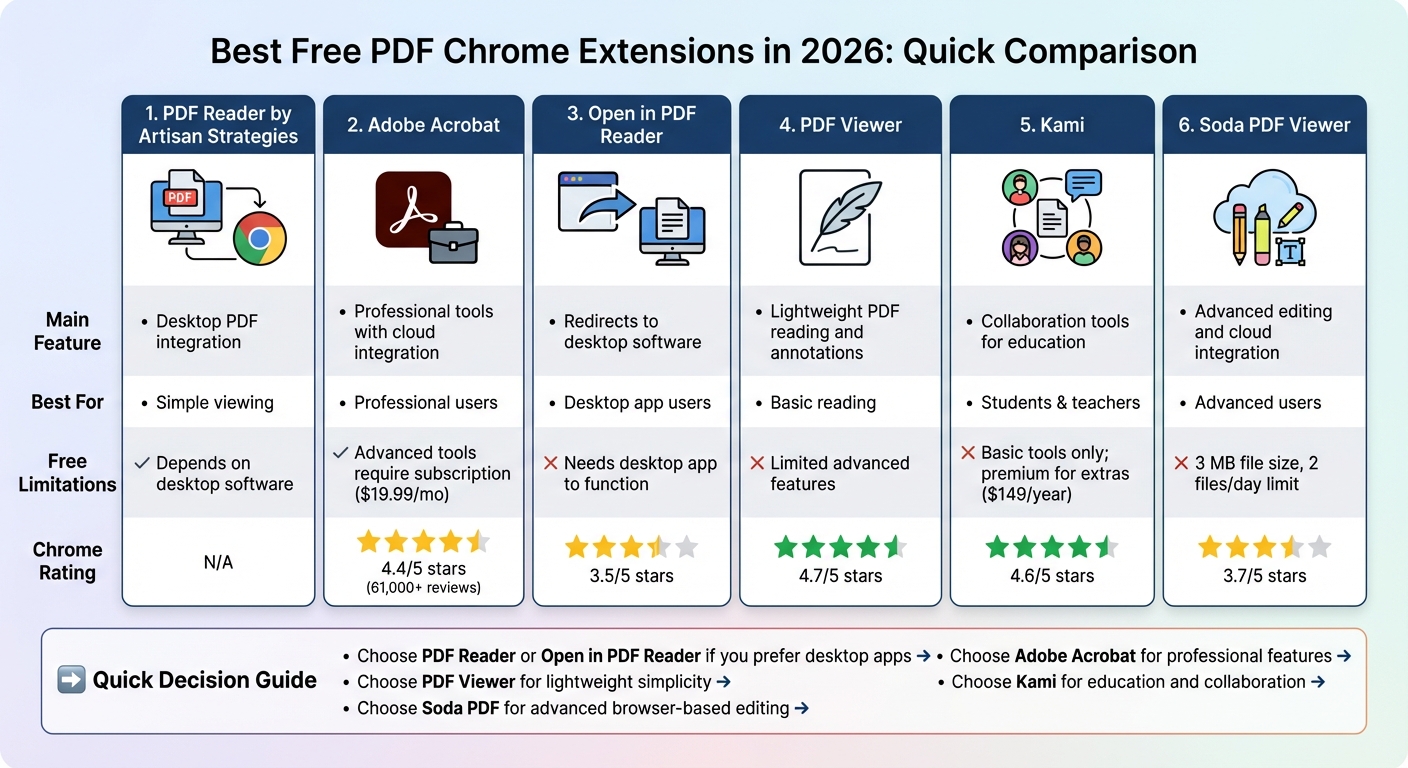
Quick Comparison:
| Extension | Main Feature | Free Limitations | Chrome Rating |
|---|---|---|---|
| PDF Reader | Desktop PDF integration | Depends on desktop software | N/A |
| Adobe Acrobat | Professional tools with cloud integration | Advanced tools require subscription | 4.4/5 |
| Open in PDF Reader | Redirects to desktop software | Needs desktop app to function | 3.5/5 |
| PDF Viewer | Lightweight PDF reading and annotations | Limited advanced features | 4.7/5 |
| Kami | Collaboration tools for education | Basic tools only; premium for extras | 4.6/5 |
| Soda PDF Viewer | Advanced editing and cloud integration | 3 MB file size, 2 files/day limit | 3.7/5 |
Choose the one that fits your workflow and enjoy hassle-free PDF management directly in Chrome.
1. PDF Reader by Artisan Strategies
PDF Reader by Artisan Strategies is a streamlined Chrome extension designed for those who prefer opening PDFs directly in their browser without the distractions of extra editing tools. It works by seamlessly connecting your browser to your desktop PDF software, offering a straightforward viewing experience.
Core Features
This extension allows Chrome to integrate with your desktop PDF application. Instead of using the browser's built-in PDF viewer, it redirects files to your preferred desktop software, such as Adobe Acrobat Reader, Foxit Reader, or any other installed program [2]. By installing the native client, you can easily send PDF links to your desktop reader with a simple right-click or by using a dedicated button [2]. Once configured, this setup lets you open PDFs directly in your desktop application, eliminating the hassle of juggling multiple browser tabs or dealing with temporary downloads. This approach is part of a broader effort to streamline PDF workflows, aligning with the productivity tools envisioned for 2026.
Free Tier Limitations
Since the PDF Reader functions as a connector rather than a standalone viewer, it avoids imposing common restrictions like file size limits or daily usage caps. The extension itself is free to use, with the overall reading experience depending on the features and capabilities of the desktop PDF application you choose.
2. Adobe Acrobat Chrome Extension
The Adobe Acrobat Chrome Extension brings Adobe's trusted PDF tools right to your browser. By replacing Chrome's default PDF viewer with Adobe's advanced rendering engine, it provides a smoother viewing experience along with editing and annotation features. Let’s take a closer look at how it enhances your browser-based PDF tasks.
Core Features
This extension handles the essentials - viewing, printing, and downloading PDFs - without needing to leave your browser. It also includes a free Fill & Sign tool, allowing you to complete forms and add signatures directly. For those with a paid subscription, it offers PDF conversion to Microsoft Word, Excel, PowerPoint, and JPG formats. To make access even easier, you can pin the extension to your Chrome toolbar for quick, one-click functionality.
Annotation Tools
Adobe Acrobat’s annotation tools add a layer of flexibility to its core features. Free users can access a variety of markup options, including sticky notes, text boxes, highlights, and freestyle drawing tools - all available directly in the browser without needing the desktop app [9]. Any annotations you make are automatically saved when you download the file or sync it to the cloud.
Integration Options
The extension seamlessly integrates with Microsoft 365, letting you manage PDF files within Microsoft apps [9]. Additionally, it syncs with Adobe Document Cloud, giving you access to your files across multiple devices. This means you can start reviewing a document on your office computer and pick up right where you left off on your laptop at home. With its advanced rendering, annotation tools, and cloud syncing, Adobe Acrobat makes working with PDFs in your browser more efficient.
Free Tier Limitations
While basic features like viewing and annotations are free, many advanced tools are locked behind a subscription. Features such as merging, splitting, reordering, compressing, or password-protecting PDFs require a paid plan - either Acrobat Standard at $12.99/month or Acrobat Pro at $19.99/month [9]. The extension has a solid 4.4/5 star rating from roughly 61,000 reviews on the Chrome Web Store, though some users have voiced concerns about frequent upgrade prompts for premium features [7].
3. Open in PDF Reader Chrome Extension
This extension is designed to bridge the gap between Chrome and your preferred desktop PDF software. Instead of relying on Chrome's built-in PDF viewer, it redirects PDF links straight to external applications like Adobe Acrobat Reader or Foxit Reader. So, when you click on a PDF link, it skips the need for manual downloads and opens directly in your chosen desktop reader [10][11]. It's a helpful tool for anyone who prefers working with standalone PDF software.
Core Features
The main function of this extension is straightforward: it redirects PDF links from Chrome to your desktop application. You can trigger this redirection either by right-clicking on a link or using the toolbar pin [2]. With a rating of about 3.5/5 to 3.6/5 on the Chrome Web Store, users often praise how easily it integrates with standalone PDF readers [10][11].
Integration Requirements
To operate correctly, the extension needs a native client installed on your computer to connect Chrome with your desktop PDF software. This setup ensures smooth integration with tools like Adobe Acrobat or Foxit Reader. Many users prefer this method as desktop software often provides better viewing and editing options than Chrome’s built-in viewer. However, setting it up initially might require a bit of extra effort [2].
Free Version and Limitations
The extension itself is free, but its functionality depends entirely on the capabilities of your desktop PDF application. If you're using free software like Adobe Acrobat Reader, you'll have access to basic features such as viewing and annotating PDFs. For advanced tools - like editing, merging, or converting files - you'll need a paid desktop application. The extension doesn’t add any new features on its own; it simply makes accessing your desktop PDF tools quicker and easier.
4. PDF Viewer Chrome Extension
This extension leverages the Mozilla-supported PDF.js library to display PDF files directly in your browser using HTML5 technology. It’s built for straightforward viewing, leaving out heavy-duty editing tools. With over 1,000,000 users, the official PDF.js extension has become a go-to option for those who need a simple PDF reader [8].
Core Features
The extension excels at basic PDF viewing tasks. You can drag and drop files, navigate pages using URL hash, switch between dark and light modes, use text-to-speech, and even access PDFs offline. Its small size - ranging from 2.54 MiB to 3.21 MiB - ensures it won’t bog down your browser [8].
To open local PDFs, you’ll need to manually enable the "Allow access to file URLs" option at chrome://extensions. Additionally, you can right-click any PDF link and select "Open with PDF Viewer" to bypass Chrome’s default viewer [8].
These features cover the basics of document viewing, making it a practical tool for everyday use.
Annotation Tools
While primarily a reader, the extension includes basic annotation tools like sticky notes, text insertion, highlighting, and drawing for signatures. However, these features are limited compared to dedicated PDF editing software, as the focus remains on reading rather than in-depth editing.
Integration Options
For added convenience, the extension integrates with Chrome’s context menu and toolbar. Some versions even support cloud storage platforms like Google Drive and Dropbox, making it easy to access your files. You can also set it as your default PDF viewer, ensuring that all PDF links open with this extension instead of Chrome’s built-in viewer.
This integration streamlines the transition from viewing to saving files in the cloud, helping you maintain a smooth workflow.
Free Tier Limitations
The extension is completely free for viewing and basic annotations, but it does have a few technical limitations. For instance, it cannot display PDFs generated through POST requests, such as receipts or bank statements created via online forms. It also lacks advanced features like OCR, bulk editing, or detailed layout adjustments.
The official PDF.js extension holds a 3.3/5 star rating from 2.7K users, while an alternative version has earned a higher rating of 4.7/5 from 389 users [8]. These ratings highlight the trade-offs between simplicity and functionality.
5. Kami Chrome Extension
Kami is a PDF tool tailored for education, transforming static PDFs into interactive documents. With over 50 million teachers and students relying on it worldwide[12], Kami is built for classrooms and collaborative learning. It works on a variety of devices, including Macs, PCs, iPads, and Android tablets, making it accessible across different platforms.
Core Features
Kami enhances the PDF experience with tools like zoom, word search, and page navigation. Its AI-powered features include auto-grading, document summarization, and assessment tools. Accessibility is a priority, offering Read Aloud (text-to-speech), a dictionary, and voice typing support. It also allows text translation in over 100 languages. Beyond PDFs, Kami supports other formats like images, Google Docs, Sheets, and Slides.
Annotation Tools
Kami provides a range of annotation options. You can draw freehand with adjustable stroke thickness and transparency, or use the text box editor, which includes font choices and emoji support. The free version allows text comments and document markup with highlighters (text, freehand, and box), as well as strikethrough and underline tools. For those using the paid version, advanced multimedia options like audio and video comments are available. It also includes digital signature tools that work with touchscreen devices or a mouse, and you can share signature links for remote signing.
Integration Options
Kami integrates smoothly with Google Drive and Microsoft OneDrive for file management. It also works with Learning Management Systems like Google Classroom, Canvas, Microsoft Teams, and Schoology. These integrations make it easy to share documents via links or QR codes, enabling real-time collaboration. These features streamline workflows and make it an excellent tool for both individual and group tasks.
Free Tier Limitations
The free version includes basic tools like drawing, text boxes, and document markup. However, advanced capabilities - such as audio and video comments, AI grading, and certain assessment tools - are part of the Teacher Plan, which costs $149 per year[4]. According to Kami, teachers save an average of 5.8 hours each week, and 70% report higher student engagement with the tool[12]. For educators who need features like Class View for enhanced collaboration, upgrading to a paid plan is necessary.
6. Soda PDF Viewer Chrome Extension
Soda PDF Viewer is a Chrome-based tool designed for viewing and editing PDFs. With over 500,000 users and a recent update in November 2025, it’s aimed at professionals who need more advanced features than basic PDF readers offer. It integrates seamlessly with Google Drive and Dropbox, allowing users to edit documents directly from their cloud storage accounts.
This extension goes beyond standard PDF viewing, offering features tailored for complex workflows. Let’s dive into its standout features, annotation options, integration capabilities, and the limitations of its free version.
Core Features
Soda PDF Viewer enables users to edit PDFs directly in their browser. You can merge, split, and compress files with ease. It also offers unique viewing options like 3D View, which mimics the experience of flipping through a physical book, and Side-by-Side comparison with synchronized scrolling for reviewing documents. Additionally, the Snapshot tool lets you capture specific sections of a file to your clipboard, while bookmarks simplify navigation through lengthy documents.
Annotation Tools
This extension supports collaborative workflows by allowing you to modify annotations directly on PDF pages. It also provides tools for editing text and images, rearranging pages, and creating forms, making it a versatile option for professionals handling detailed documents.
Integration Options
Soda PDF Viewer connects to more than just cloud storage platforms. It also links with the Soda PDF Online web application, unlocking advanced features like form creation and enhanced file management. For users who need cross-platform functionality, it syncs with the Soda PDF Desktop application, available for Windows.
Free Tier Limitations
The free version comes with some restrictions: you can only work with files up to 3 MB in size and are limited to processing 2 files per day[13]. On the Chrome Web Store, Soda PDF Viewer has a 3.7 out of 5-star rating based on 6 reviews, while the broader Soda PDF Online platform has a higher rating of 4.4 out of 5 stars from 3,225 reviews[13]. Upgrading within the app unlocks the full suite of features for those who need fewer limitations.
Pros and Cons
Here's a breakdown of the main benefits and drawbacks of each extension, based on the features discussed earlier.
PDF Reader by Artisan Strategies offers smooth desktop PDF integration, ensuring quick loading times. However, its functionality is limited to basic viewing and navigation, as it lacks advanced editing capabilities.
Adobe Acrobat is packed with professional-grade tools for viewing, commenting, and form-filling, along with seamless integration with Document Cloud. With over 61,000 reviews and a 4.4/5-star rating[3], it's a trusted choice for many. That said, advanced features like text or image editing require a Pro subscription costing $19.99 per month[1]. Additionally, its resource-heavy nature may slow down older systems.
Kami shines in real-time collaboration, offering voice and video commenting along with integration into platforms like Google Classroom, Canvas, and Microsoft Teams[4][5]. However, it can struggle with performance during intensive markup sessions. Its free version is limited to basic tools, while full access is locked behind the Teacher Plan, priced at $149 per year[4].
Open in PDF Reader takes a unique approach by opening PDF links directly in desktop applications like Adobe Acrobat Reader instead of rendering them in the browser[7]. This reduces browser load but requires desktop PDF software to function. It has a 3.5/5-star rating, and without the required software, it won’t work[2].
The table below provides a quick comparison of these extensions:
| Extension | Main Advantage | Key Limitation | Chrome Web Store Rating |
|---|---|---|---|
| PDF Reader (Artisan Strategies) | Fast desktop PDF integration | No advanced editing tools | N/A |
| Adobe Acrobat | Professional tools with Document Cloud integration[3] | Pro subscription required for advanced editing ($19.99/mo)[1] | 4.4/5 (61,000+ ratings)[3] |
| Open in PDF Reader | Keeps browser lightweight with external integration[7] | Requires desktop PDF software[2] | 3.5/5[3] |
| PDF Viewer | Extremely lightweight[14] | Missing management features[2] | 4.7/5[3] |
| Kami | Real-time collaboration and LMS integration[4][5] | Performance issues during heavy markup; limited free tools[4] | 4.6/5[4][5] |
| Soda PDF Viewer | Advanced editing with cloud integration | 3 MB file limit and 2 files/day on free plan[13] | 3.7/5 (6 reviews)[13] |
Conclusion
By 2026, selecting the right PDF extension boils down to streamlining your workflow and minimizing unnecessary complexity.
PDF Reader by Artisan Strategies shines because it focuses on the essentials: viewing PDFs, filling forms, signing documents, and making quick annotations - all directly within your browser. As Fredrick Eghosa put it, "The tool is easy to use and provides you with basic editing features" [6]. Plus, its support for both light and dark themes helps reduce eye strain [14], all while maintaining smooth and lightweight performance.
This straightforward approach sets it apart from feature-packed alternatives. Adobe Acrobat, for instance, offers advanced tools like OCR and high-level security, but these professional-grade features often come with hefty subscription costs that many users simply don’t need for everyday tasks. Similarly, while Kami excels in real-time collaboration for education, it’s less suited for general productivity. And Open in PDF Reader requires desktop software, which disrupts the seamless browser experience.
For users who prioritize speed and simplicity - reading, signing, and annotating PDFs without leaving the browser - PDF Reader by Artisan Strategies hits the mark. It loads quickly, stays unobtrusive, and keeps your workflow efficient, highlighting the value of in-browser functionality for staying productive. That’s exactly what a great extension should deliver.
FAQs
What features does the PDF Reader by Artisan Strategies offer?
The PDF Reader by Artisan Strategies is packed with features to make working with PDFs easier and more flexible. It offers light and dark mode themes, hash-based page navigation, and customizable viewer settings to match your preferences. Opening files is a breeze with its drag-and-drop functionality, while tools like digital signing, text and image insertion, and drawing tools let you annotate with ease.
Other handy features include page cropping, extracting specific pages into new PDFs, and advanced rendering options such as WebGL and auto-rotate printing. It also supports partial PDF scripting and highlights whether signatures are signed or unsigned for added clarity.
How does the Adobe Acrobat Chrome extension work with cloud services?
The Adobe Acrobat Chrome extension connects effortlessly with Adobe Document Cloud, making it easy to open PDFs right in Acrobat online. With this integration, you can save and sync files across your devices, share documents for review, and use cloud-based tools like converting files or merging documents - all without ever leaving your browser. It’s a streamlined way to handle PDFs with ease.
Are there any limitations to using the free version of Soda PDF Viewer?
Unfortunately, the exact limitations of the free version of Soda PDF Viewer aren't outlined in the information provided. For the most precise and current details, it's best to explore the software directly or consult its official documentation.
Related reading
- Best Dictionary Chrome Extensions for Writers (2026)
- ADHD Task Paralysis: Why You Can't Start & What Actually Helps
- How to Decide What to Work on When Everything Feels Urgent
- Best ADHD Focus Apps for Mac 2026 (Actually Stay on Task)
- compare the pricing models of leading ai inventory solutions geared toward b2b e-commerce and suggest which tiers make sense for a series a startup.
Useful tools & services
Explore our tools for everyday work
Browse our focus app, PDF reader, and other products to find an option that fits your task.
Browse our productsThese are products built by Artisan Strategies.